TouchStream · Every feature
Everything it does.
A spoke in each room, a hub on a computer you already have, and your YouTube channel. Here’s all of it. For how it works underneath, see the technical docs.
The spoke
One small box. One touch.
It sits by your camera: HDMI in, Ethernet out, a touchscreen on top. Nothing to build and no crew to run it.
- Tap Go live on its screen, or let the schedule start it
- Streams straight to YouTube from the box when it has to
- Records its own copy to its 32 GB card as it streams
- Shows how many are watching while you’re live
- A QR code for each recording: watch it, trim it and download a clip on your phone
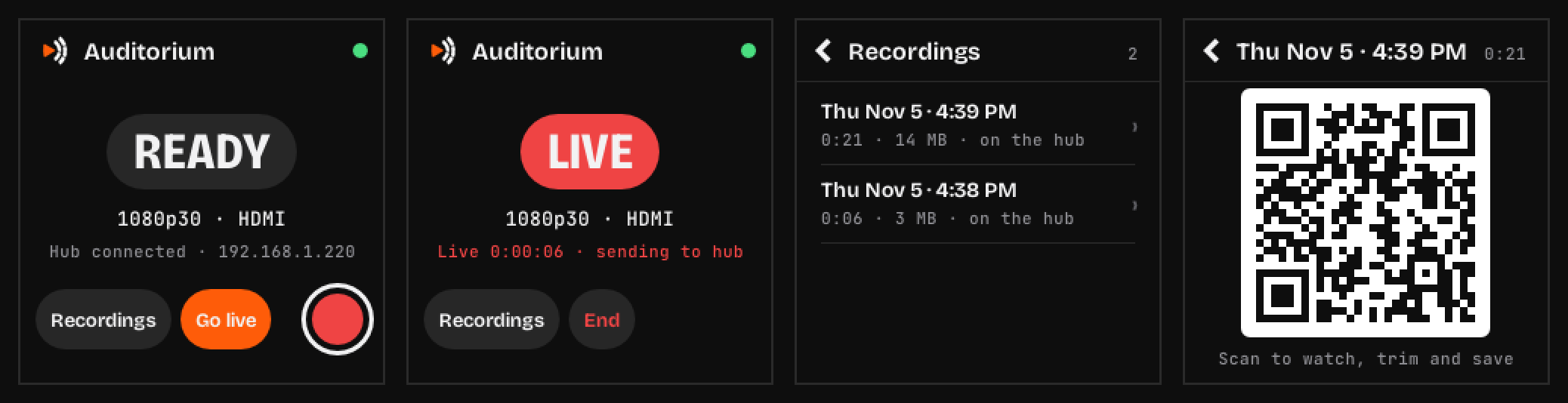
Ready, live, its recordings, and a QR code to watch one on your phone.
A spoke in the room. A hub for the rest.
One spoke per room, one hub for all of them. The hub runs on a computer you already have, and talks to YouTube for you.
Your camera
Any camera or video mixer with HDMI out.
The spoke
One small box. Tap Go live, or let the schedule. It streams straight to YouTube if it has to.
The hub
On a computer you already have: the schedule, every recording, the edits and the Shorts.
YouTube
Free streaming to everyone watching, and the views come back to you.
Copies in more than one place
Never lose a broadcast.
Every broadcast is kept in more than one place at once. If the internet drops, the spoke keeps recording. If the hub is off, the spoke goes live straight to YouTube, on schedule.
On the spoke
It records to its own card as it streams. If the internet drops, the recording doesn’t.
On the hub
It records as the video arrives, files it in a folder named for the broadcast, and fills any gap from the spoke’s copy.
On YouTube
The live video stays on your channel, and the edited video and Shorts join it when you publish them.
A week on autopilot
Set it Monday. Sunday runs itself.
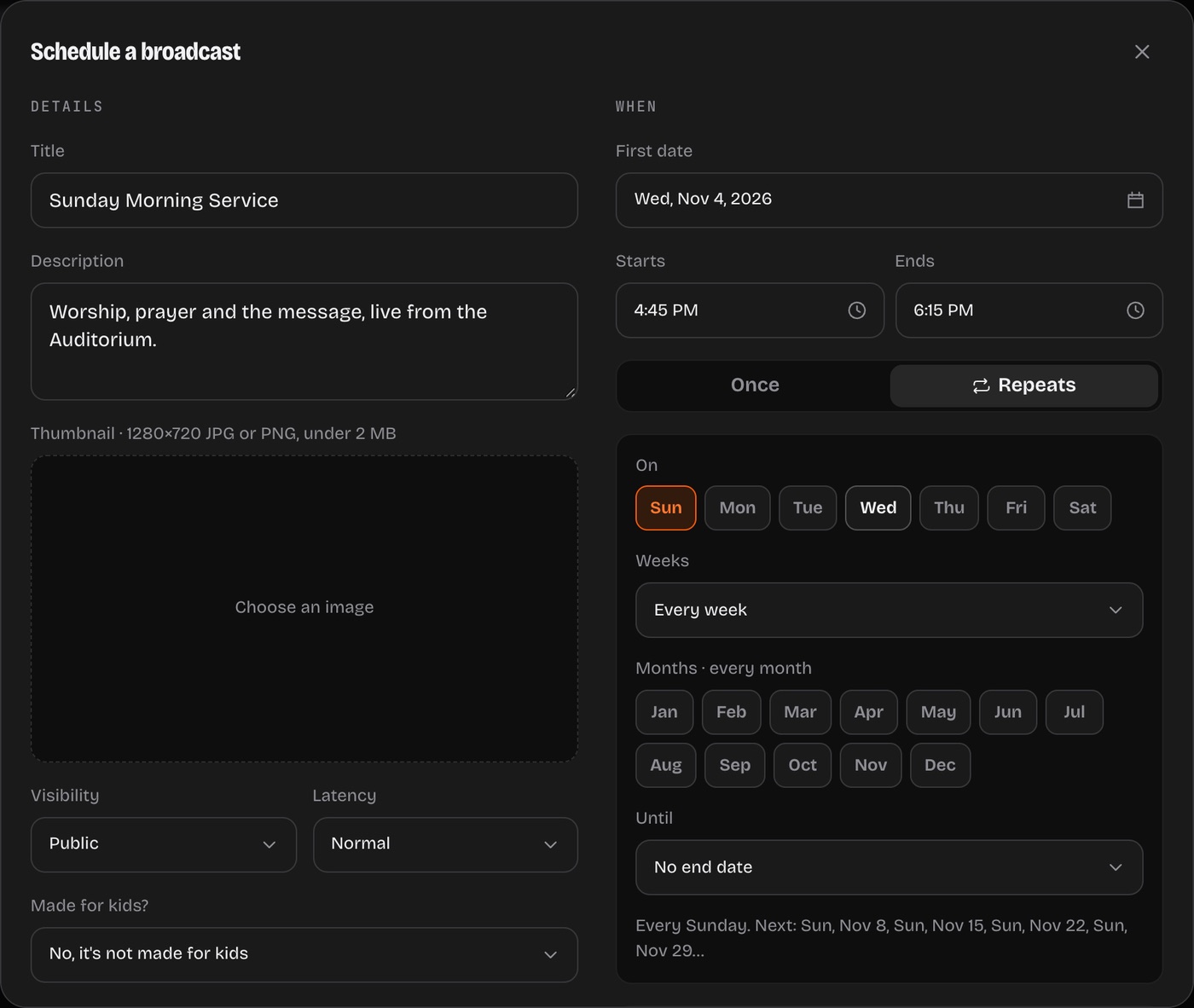
Repeats like “every Sunday at 10” or “1st and 3rd Wednesday, June to August”. Each date gets its own broadcast on YouTube, made ahead of time.
- Mon
You schedule it once
“Sundays at 10, Sanctuary spoke, our channel.” Title, description and thumbnail included.
- Sat
The spoke has its copy
Each spoke keeps the week’s schedule, so it goes live straight to YouTube even if the hub is off.
- 10:00
Live on YouTube
It starts on time. The spoke and the hub both record, and the spoke shows how many are watching.
- 11:30
Ended on time
YouTube stops, and the video is filed in a folder named for the broadcast.
- 11:35
Transcribed
Speech to text runs on your hub. Correct it, export captions, or search it.
- 11:45
Shorts made
The hub picks the best moments and makes them into Shorts with captions, ready for you to approve.
- 11:50
Edited your way
Its edit profile cuts it to the message, takes the songs out and puts your brand on. Then it waits for you, or publishes.
- Later
Publish, and see who watched
Look over the edit and publish it, or change it and it learns. Download the audio for your podcast. Views of the broadcast, the edit and the Shorts add up on its page.
The hub does the rest.
Schedules, recordings, edits, Shorts and views for every room, in one dashboard on your own computer.
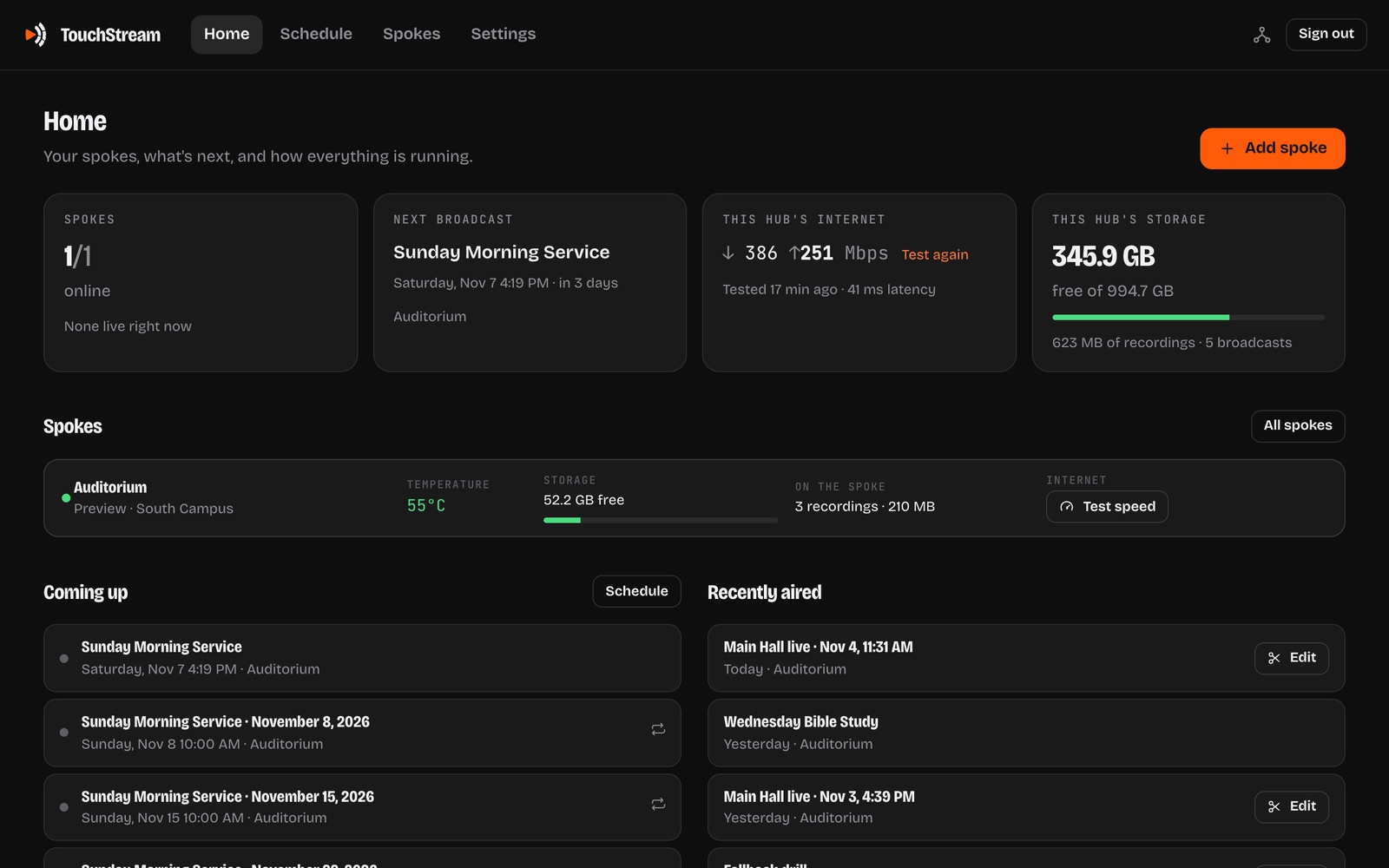
The hub runs the schedule
Once, or “Sundays at 10” and “1st and 3rd Wednesday, June to August”. Each date gets its own YouTube broadcast, live on time and ended on time.
Edited by itself, your way
Just the message, the songs taken out, your brand on: after each service the hub makes the edit, then waits for you or publishes it. It learns from every change you make.
An editor on the hub
A timeline with titles, music, color and transitions, always cut from the full recording. Publish it as a new video and hide the live one.
Shorts made for you
After each broadcast the hub picks its best moments and makes vertical Shorts that follow the speaker, with captions. You approve them.
Just the audio
Download any broadcast or edit as an MP3 for your podcast or website, ready in seconds whatever its length.
See who watched
Views, likes and comments for every broadcast, edit and Short, and how many are watching while you’re live. The spoke shows it too.
Transcripts and captions
Speech to text on your own computer, corrected in the dashboard and ready for YouTube Studio.
An assistant, if you want one
“Schedule our service every Sunday at 10.” Ask in plain words on any page. Bring your own OpenRouter key, or leave it off.
Run it from your AI
The hub is an MCP server with an API: Claude Code, n8n and other agents can schedule, go live, edit and publish, with only the access you give them.
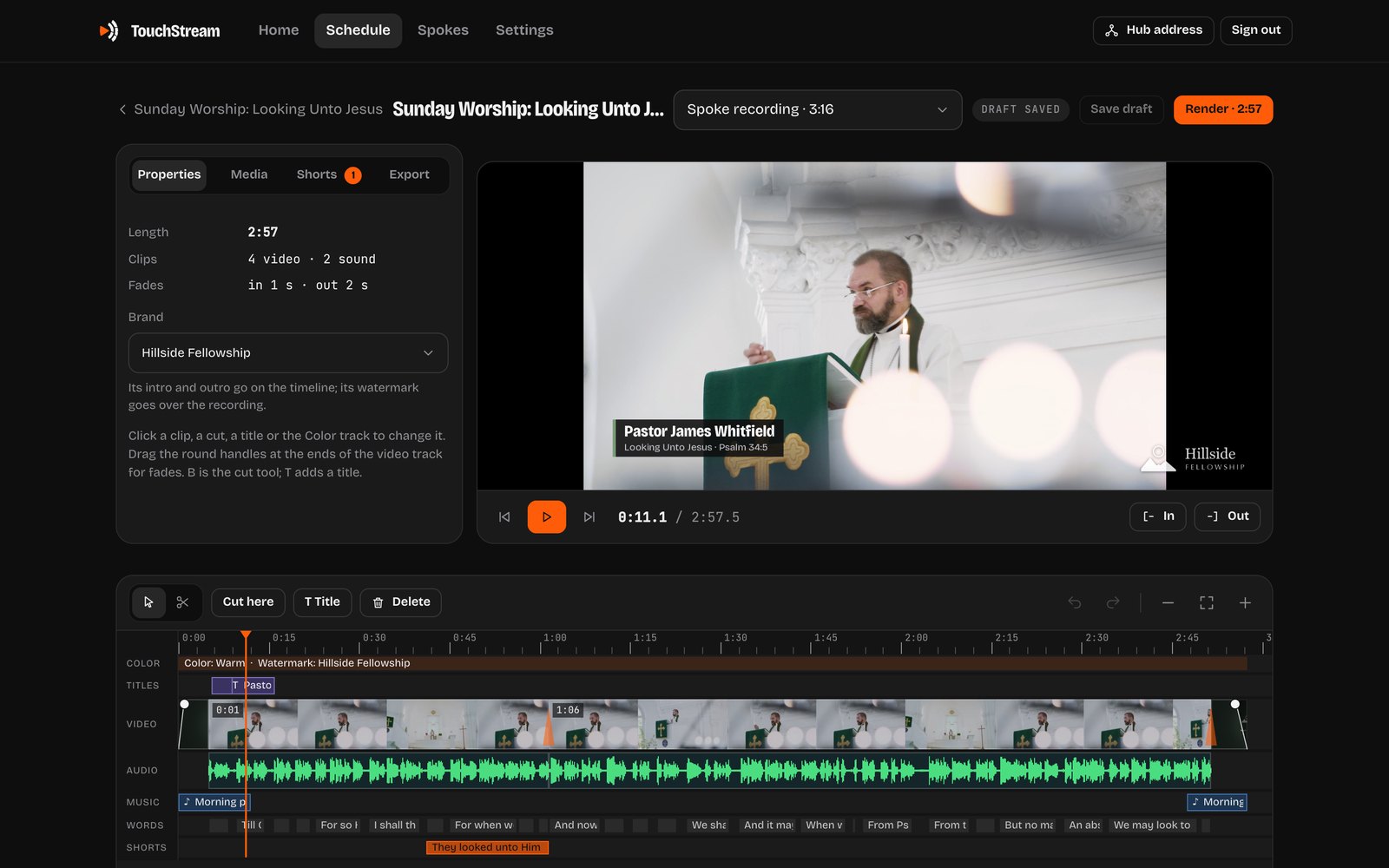
Edits and Shorts, from the original
Every edit starts from the full recording, so nothing is ever lost by cutting. After each broadcast the hub makes its Shorts by itself: the best moments, vertical, following the speaker, with captions. They wait for you to look over and publish.
Edited by itself
It learns how you edit.
Every church edits its own way. Give the hub an edit profile and it makes each service’s edit by itself, from the transcript, the way you would. Pick one for a broadcast or a whole series, or try it on last Sunday first.
Just the message, or all of it
It finds where the sermon begins and ends in the transcript, or keeps the whole service with the dead air trimmed off.
The songs out
Worship songs and special music come out, found by their words. Or keep them in.
Pauses stay, unless you ask
A pause is part of preaching, so long pauses come out only if a profile asks. Shorts take them out for you.
In your own words
“We open with announcements and two songs. Keep from the scripture reading to the closing prayer.”
It learns from you
Change an edit it made, or make one yourself, and it does it your way next week. See what it learned, and remove any of it.
Waits, or publishes
It waits on the broadcast for you to look over, or goes to YouTube by itself and hides the live video.
Finding the message and the songs uses the assistant, with your own OpenRouter key. Without it, an edit profile trims the dead air before and after. It never touches an edit you made.
Your brand
Your look on every video.
Set it up once in the hub’s Settings, under Brands: your thumbnail, intro, outro, logo and color. From then on your broadcasts, edits and Shorts look like yours, without anyone remembering to add them.
A default thumbnail
Every broadcast on the channel gets it, and so does every edit you publish, unless you pick a picture for that one.
Intro and outro
A video, or a still with your logo for a few seconds, put at the start and end of each edit for you. Move or remove them in the editor.
Your logo and color
Your logo in a corner of each edit and at the top of each Short, and your color on the lower thirds and titles.
One for each channel
Stream to more than one channel? Each can have its own brand. Connect a channel and the hub offers to set its brand up.
AI agents and the API
Let your AI run it.
The hub is an MCP server, the standard way AI agents use tools, and everything the dashboard does is in its API. So your agent can run Sunday for you, with only the access you give it.
How to connect oneAsk it
- “Schedule our service every Sunday at 10, with the date in the title”
- “Edit last Sunday with the sermon profile and publish it”
- “Make a Short of the part about forgiveness”
Access you approve
An agent asks at your hub’s /agent page. You approve it in the dashboard, matching a code, and choose read only, control or admin. Revoke it any time.
Fourteen tools
Schedule broadcasts, once or repeating. Go live and end. Read transcripts. Edit by hand or with a profile, make Shorts, publish, and download recordings or their audio.
Works with what you use
Claude Code, Cursor, VS Code, n8n and other apps that speak MCP, or plain calls to the API, which is described in OpenAPI.
YouTube first · on your own gear
No monthly fees.
TouchStream isn’t a hosted service you rent. It runs in your building, on your computer, and streams to your YouTube channel, which carries it to everyone watching.
No subscription
TouchStream is free software. You buy a spoke once for each room, and that’s the whole bill.
Your equipment, your files
The hub runs on your own computer. Every recording, edit and transcript is a file you keep.
YouTube does the rest
YouTube carries your stream to everyone watching, for free. TouchStream is made for it first.
Keeps itself up to date
The hub updates itself when nothing is live or due, then updates each spoke, which only takes updates signed by us.
Your YouTube account
What it does with your channel.
When you connect a channel, TouchStream asks Google for permission to manage your YouTube account, so it can run your broadcasts for you. Your hub talks to YouTube directly. Your sign-in, recordings and data stay on your own computer and never reach Cinderwire.
Disconnect a channel in the hub’s Settings, or remove TouchStream at myaccount.google.com/permissions. TouchStream uses YouTube API Services: see the TouchStream privacy policy and terms.
Creates your broadcasts
The title, description, time, visibility and thumbnail you set in the dashboard (or your brand’s thumbnail), on the channels you pick.
Goes live and ends on time
It makes a stream for each spoke, sends the spoke its address, and checks each broadcast it made so it starts and stops on schedule.
Publishes when you say
Edited videos and Shorts upload only when you choose Publish, and it can make the original live video private if you ask.
Shows how they did
It reads your channel’s name and picture, and the views, likes and comment counts of the videos it made. Not your other videos or your comments.
FAQ
Questions, answered.
No. TouchStream isn’t a hosted service: the software is free, it runs on your own computer, and YouTube streams to your viewers for free. You buy a spoke once for each room. If you’d like us on call, there’s an optional support plan.
The software is free and open source (MIT License). A spoke for each room is $120 ready to go from us, with its 32 GB microSD card, or a Luckfox PicoKVM and a microSD card you set up yourself (or we set it up with you for $100). The hub runs on a computer you already have. The support plan is optional: $50 a month for your church or site.
No. TouchStream runs on your own computer and box. Your hub talks to YouTube directly, and your recordings, transcripts and YouTube sign-in stay on it. Cinderwire runs no TouchStream servers and never sees your data.
No. Without a channel connected, TouchStream still records every broadcast for you to download, edit and upload wherever you like.
Nothing is lost: the spoke keeps recording to its own card, and the hub fills in its copy afterwards. If the hub is off, the spoke goes live straight to YouTube on its own, on schedule.
Yes. In the hub’s Settings, under Brands, give each channel a brand: a default thumbnail for its broadcasts and edits, an intro and outro, a watermark for your edits and Shorts, and a color for your lower thirds and titles. When you connect a channel, the hub offers to set its brand up.
Yes. Make an edit profile in the hub: just the message or the whole service, the songs out, long pauses out or not, your own instructions, your brand. After each service it makes the edit, then waits for you or publishes it, and it learns from the changes you make. Finding the message and the songs uses the assistant, with your own OpenRouter key; without it, it trims the dead air before and after.
Yes. Every broadcast’s Download menu has Audio only: an MP3 of the recording or of the edit, ready in seconds whatever its length.
Yes. The hub is an MCP server with an API, so Claude Code, Cursor, n8n and other agents can schedule, go live, edit and publish. You approve each agent and choose what it can do: read only, control or admin.
YouTube is the only platform it schedules for now. You can add any RTMP stream key to a spoke, and it goes out there whenever that spoke is live.
Yes: $50 a month for your church or site, covering the hub and every spoke there. We help by email, phone or a remote session to troubleshoot and fix it, and with YouTube and scheduling. It’s month to month: cancel anytime. It’s for spokes bought from us, or set up by us.
Yes: a setup session is $100. On a call, we install the hub on your computer, write the card for your PicoKVM, pair it and connect your YouTube channel with you. You can add the support plan too.
Disconnect the channel in the hub’s Settings, which also gives the hub’s access back to Google, or remove TouchStream at myaccount.google.com/permissions.
One touch and you’re live.
TouchStream is made by Cinderwire and released under the MIT License.
TouchStreamEvery featureTechnical docsPrivacy policyTerms GitHub